

Making a single AI clip can be straightforward: write a prompt, generate, and review. A short drama, a product ad with several angles, or a recurring character series asks more of an AI short video generator. The shots need to connect, the subject needs to remain recognizable, and the references need to stay organized as the project grows.
AI Shorts Studio brings multiple video and image models into one creative workspace, with a canvas for scripts, characters, scenes, reference images, and generated clips. It is designed for creators who want to build a sequence rather than manage each shot as a separate experiment.
Here is how the platform's main features fit together, who they suit, and how to approach your first multi-shot project.
What is AI Shorts Studio?
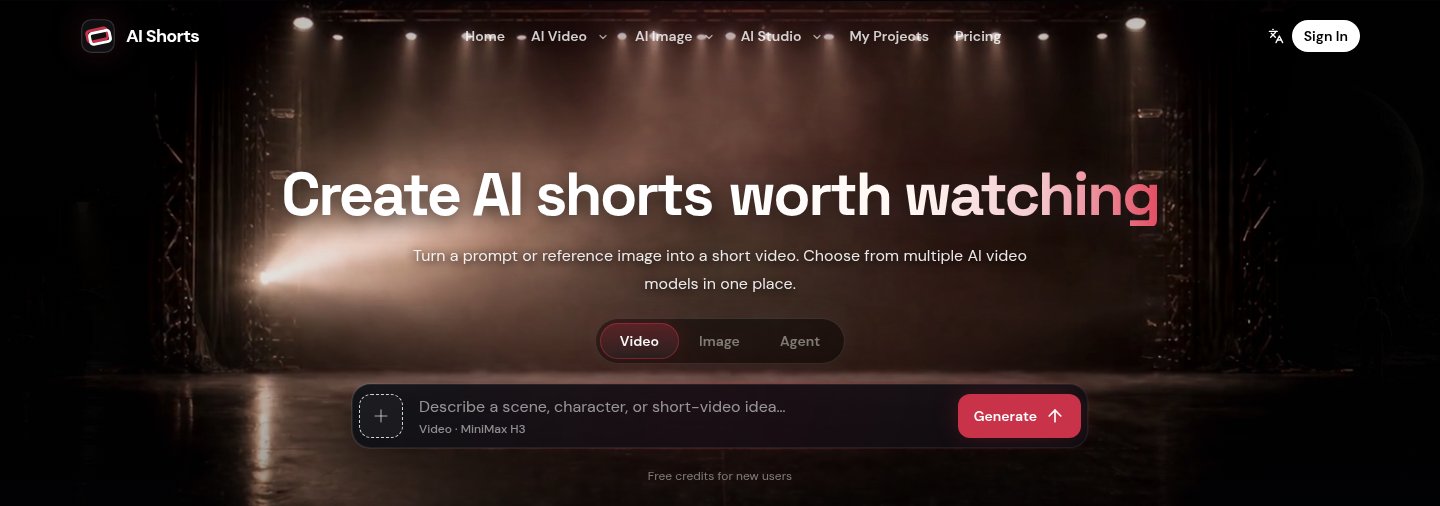
AI Shorts Studio homepage. Screenshots in this article were supplied with the reference draft. The cover is a separate AI-generated editorial illustration.
AI Shorts Studio creates short video clips from text prompts or supported reference images and lets you choose from several models in one place. Its project canvas extends that process across multiple shots: add a story, break it into characters and scenes, plan the shots, and generate the reference frames or clips each one needs.
Keeping those assets connected to the same project makes them easier to reuse. The workflow moves from script and references to storyboards and video material that you can review and assemble into a finished short.
Key features
1. Multiple video models in one generator
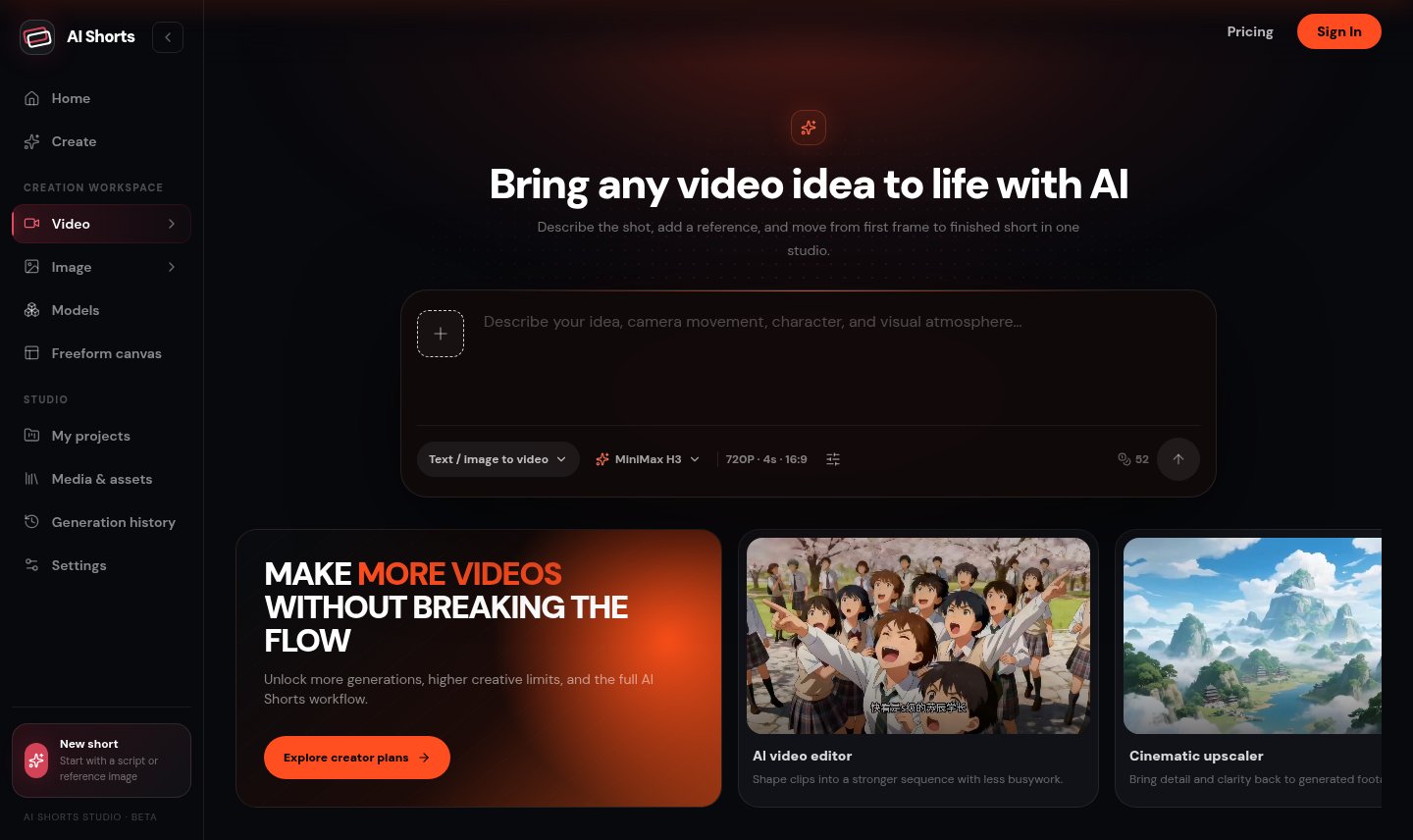
The video workspace brings the prompt, reference input, model selection, and settings together. Screenshot supplied with the reference article; available options and costs may change.
You can choose a model for the shot you are making instead of committing the whole project to one generator. The site's collection includes Seedance 2.5, Seedance 2.0, Seedance 2.0 Mini, MiniMax H3, Wan 3.0, and Veo 3.1 Fast. Supported inputs, durations, aspect ratios, and other settings differ by model.
A useful approach is to explore a scene with a model that suits quick drafts, then compare another when the shot needs different reference or motion controls. Keeping those choices in one interface can reduce the friction of switching services and reorganizing assets. Check the actual controls and credit estimate before each generation.
2. Image models for reference frames and keyframes
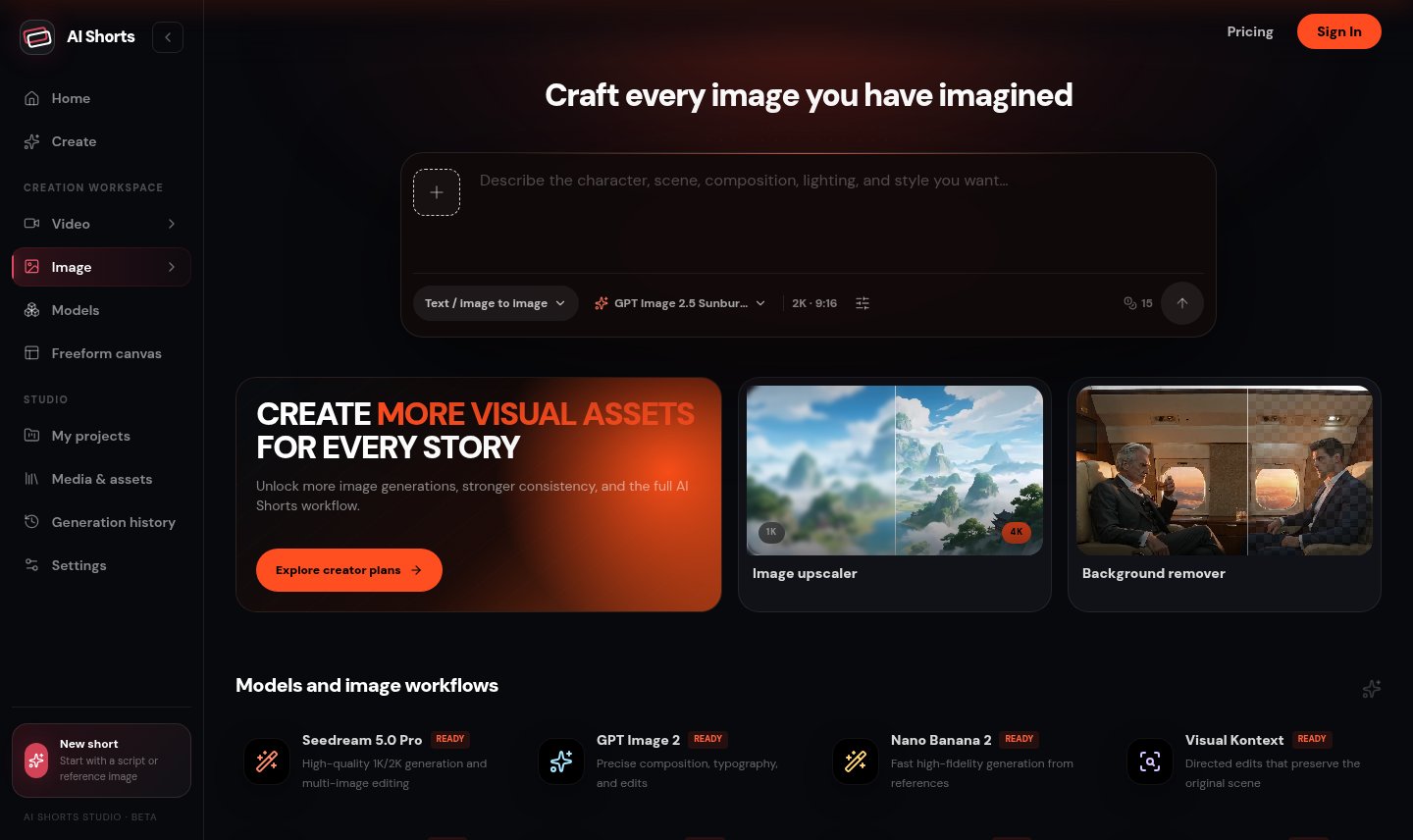
Image generation provides a way to prepare characters, scenes, and reference frames before adding motion. Screenshot supplied with the reference article.
The image-model collection includes GPT Image 2.5 Sunburst and Flare, GPT Image 2, Nano Banana 2, Nano Banana Pro, and the Seedream 5.0 family. These models can be used to prepare character portraits, product visuals, environments, and keyframes.
An approved reference frame establishes the intended subject, lighting, and composition before you ask for movement. It helps communicate the look, although the video still needs checking for changes over time. If you prefer to prepare your stills separately, our Nano Banana 2 image editor provides a starting point for reference-image creation and editing.
3. Text-to-video and image-to-video
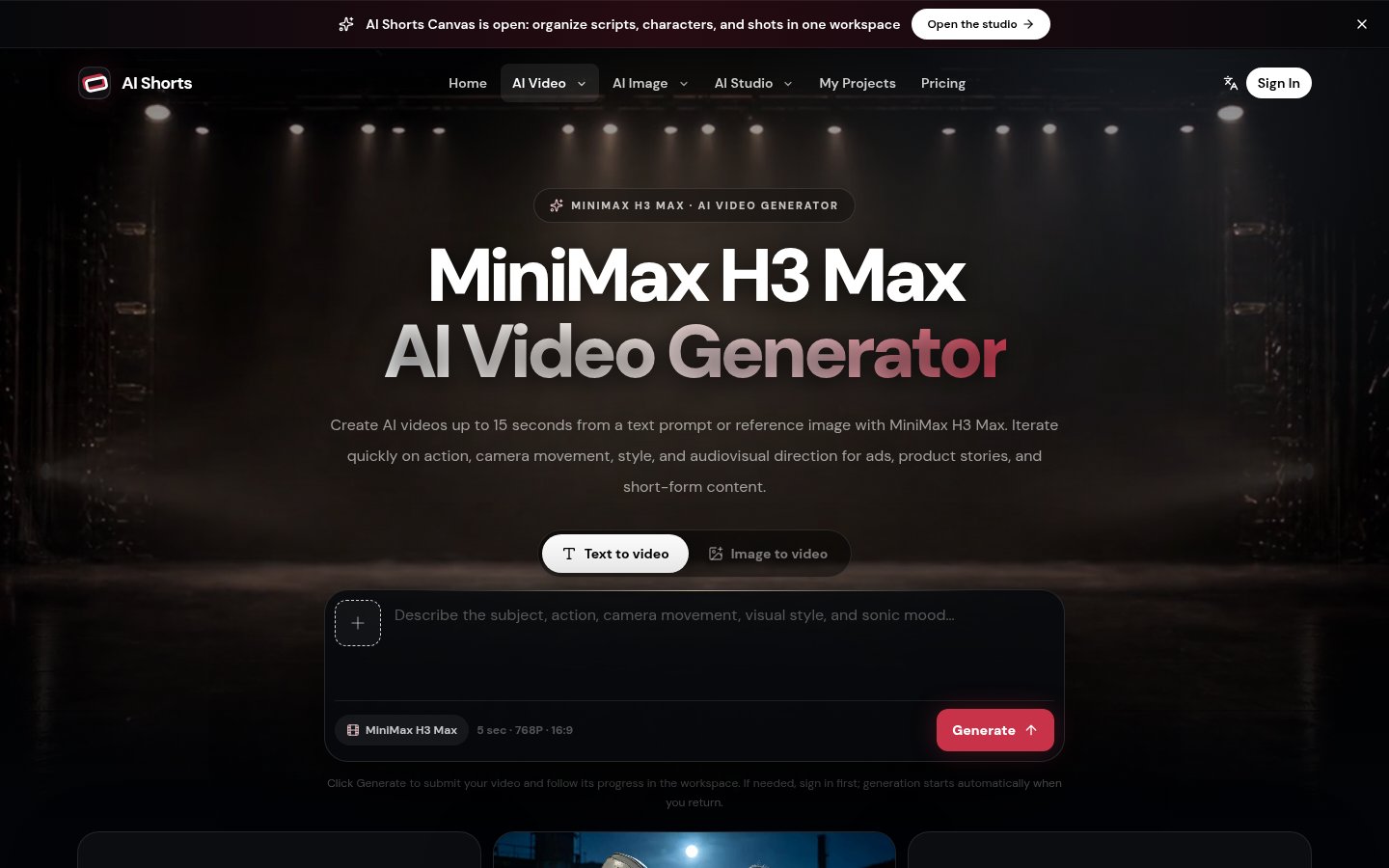
The MiniMax H3 Max page illustrates the choice between text and image starting points. Screenshot supplied with the reference article.
Start with text when you want to explore a new scene. Use a reference image when a particular character, product, or composition already matters. Some models offer additional modes: the MiniMax H3 Max page, for example, describes text-to-video, image-to-video, and first/last-frame inputs.
First and last frames can give a transition a defined opening and destination. Choose frames that agree on the subject and basic layout, and confirm that the selected model supports the input mode you need.
4. Script-to-storyboard on the canvas
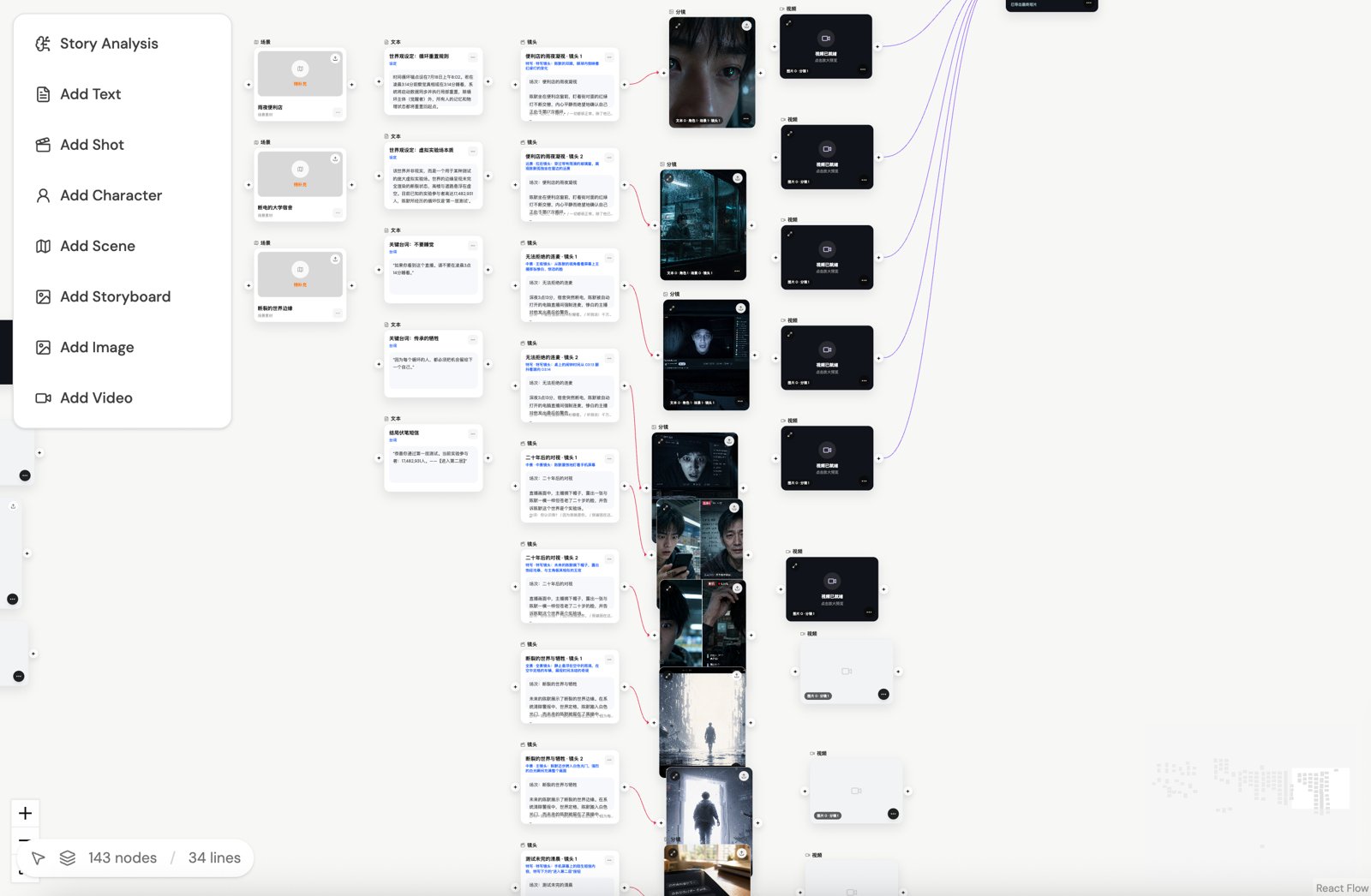
The supplied canvas screenshot shows story text, visual references, and video nodes arranged as a connected project.
In the canvas, you can add story text and use story analysis to organize it into characters, scenes, and shots. Review the proposed breakdown, refine the shot details, and attach references before generating storyboard images or clips.
That planning stage is particularly useful for short dramas and multi-shot ads. It lets you spot a missing transition, an unnecessary shot, or a conflicting character description before spending credits on the video. A clear shot list also gives you a practical way to judge what each result needs to accomplish.
5. Character bibles and consistency across shots
A recurring character needs more than a similar face. Wardrobe, hairstyle, accessories, and the surrounding world also contribute to continuity. AI Shorts Studio describes project features for saving character bibles, reference images, and their relationships so those details can guide later shots.
To prepare a concise character brief, start with the character-design prompt collection, then keep the approved appearance consistent. References help reduce ambiguity; they do not remove the need to inspect faces, clothing, and proportions in each clip.
6. Shot rhythm and motion control
Shot size, camera position, movement, duration, and keyframe direction give a clip a specific role in the edit. A close-up can introduce a detail, a wider shot can establish the setting, and a held ending can leave room for the final message.
Describe those choices explicitly. “Slowly pull back to reveal the full product” gives a clearer task than a string of adjectives such as “cinematic” or “dramatic.” Keep the requested action within the selected model's supported settings.
7. One project, reusable assets
Useful images and clips can remain part of the project context, ready to inform another shot or revision. This is valuable when an approved character reference or scene should carry across an entire sequence.
Keep clear names for accepted assets and distinguish them from experiments. When a shot needs revising, return to the approved references rather than building on an output that has already drifted from the brief.
8. Templates and recreation guides
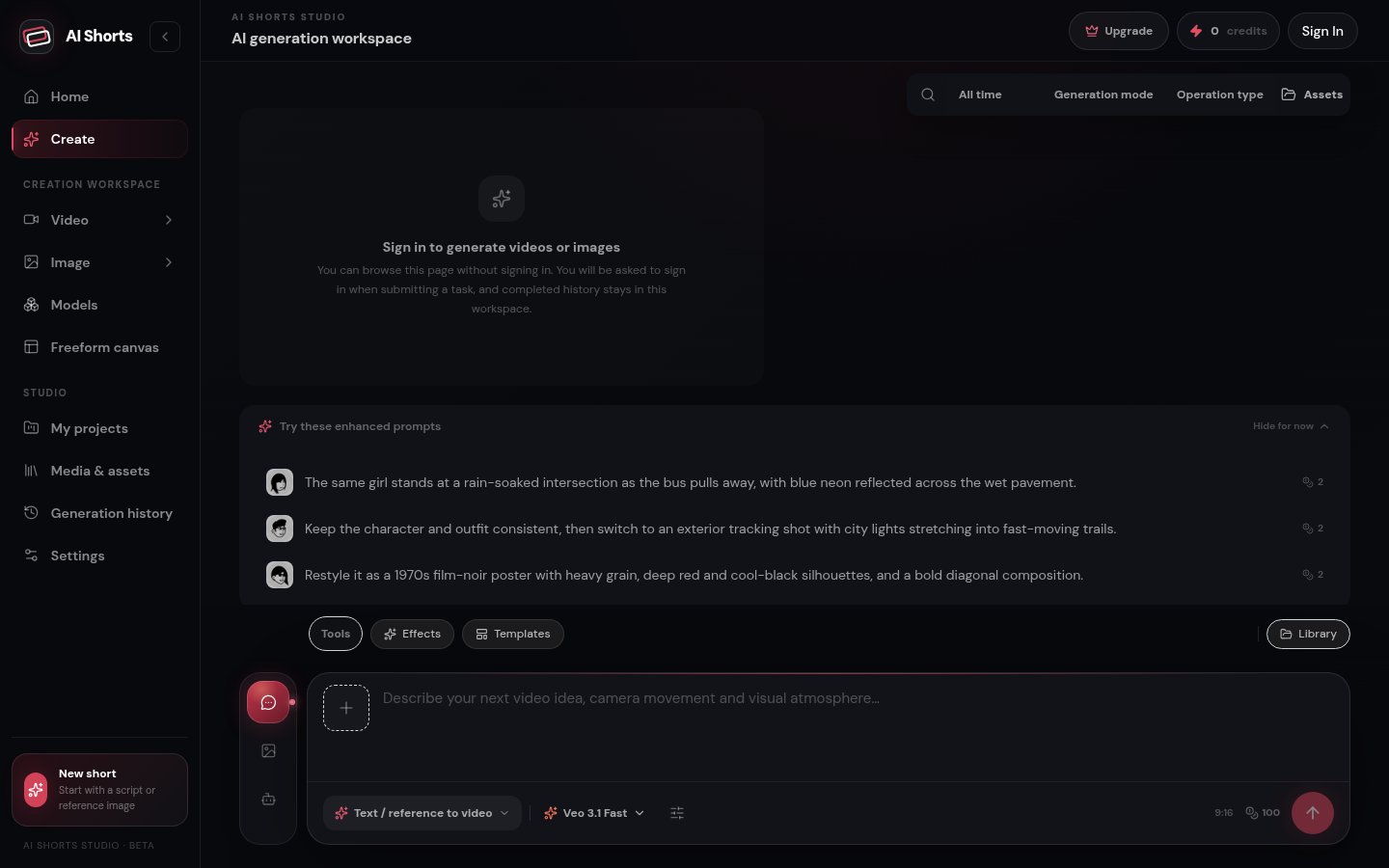
The supplied creation-workspace screenshot includes prompt suggestions and template-related controls.
For a more concrete starting point, the site offers effect and trend templates, editable prompts, and recreation guides that explain the shots behind an example. Use them to understand the structure of an effect, then adapt the subject and references to your own idea.
A template is most useful when you know which parts to preserve: the camera move, the transition, or the order of shots. Changing all of them at once makes the result harder to direct.
How it works: your first video in three steps
- Describe the video. Write the subject, action, and camera movement. Add a reference image when the appearance or composition matters.
- Choose a model. Check its supported inputs, duration, aspect ratio, output settings, and displayed credit charge.
- Generate and review. Sign in, generate the clip, and watch the result. Adjust the prompt or references for the next version.
For a sequence, continue in the canvas: add the story, review its shot list, attach the relevant references, and generate shot by shot. If reference-image preparation is new to you, our Nano Banana image-generation and editing guide explains that part of the process.
Who is AI Shorts Studio for?
- Short-drama creators organizing the same cast and setting across scenes or episodes.
- Marketers and e-commerce teams developing product ads from reference photos and campaign ideas.
- Social creators planning vertical drafts for TikTok, Reels, and YouTube Shorts.
- Animation and character-IP teams working from reusable character designs and scene references.
- Filmmakers exploring AI who want to plan shot size, camera direction, movement, and sound as part of a sequence.
Practical use cases
Serial short drama
Start with an episode script, break it into scenes and shots, and reuse the same character references across the sequence. Review continuity before moving to the next scene. Pay attention to small details such as a jacket, hairstyle, or prop that should survive a cut.
Product ads
Begin with a product photograph and prepare a few keyframes before testing motion. If the background distracts from the product, remove the image background and inspect the resulting edges before composing a new scene. The e-commerce image prompt collection can help with lighting and setting ideas.
A simple three-shot plan is enough for an initial test:
| Shot | Purpose | What to preserve |
|---|---|---|
| Detail | Introduce a material or recognizable feature | Texture, color, and product geometry |
| Reveal | Show the complete product in context | Proportions, branding, and lighting |
| Final frame | Leave a clear product image and room for copy | Subject placement and a stable composition |
Generate each shot separately where appropriate, then trim and assemble the accepted clips. The table is a suggested planning example, not a tested output or a required platform template.
Social shorts
Plan a strong opening image, one clear visual development, and an ending that works in a vertical frame. Think about how the clips connect before generating them. Review the finished edit on a phone, including the space needed for captions and platform controls.
Pricing
AI Shorts Studio offers paid subscriptions based on credits, with image and video creation sharing a balance. Costs depend on the model and settings, so check the displayed estimate before generating and review the plan's credit-validity rules.
Leave room for reference images and retakes. Three shots may require more than three generations; judge the budget by the number of usable results, not just the allowance shown on a plan.
How it compares with single-model tools
A dedicated single-model tool can work well when you need one familiar kind of clip. AI Shorts Studio's distinguishing feature is the combination: several image and video models, plus a canvas that keeps scripts, characters, references, and shots connected.
For multi-shot work, that organization can matter as much as the model selection. Consider whether the workflow makes it easier to find approved assets, revise individual shots, and keep a consistent visual direction as the project grows.
Tips for better results
- Write one main subject, action, and camera direction for each shot.
- Use a reference image when a face, product, or recognizable color needs to carry across clips.
- Review the shot list before generating and remove beats that do not advance the sequence.
- Change one variable at a time between versions so you can understand the effect.
- Keep approved frames for reuse, and compare later results with the original reference.
- Check the middle and end of a clip as well as its opening frame before accepting it.
FAQ
How is AI Shorts Studio different from a regular AI video generator?
It combines multiple image and video models with a canvas for organizing scripts, characters, scenes, references, and generated assets across a multi-shot project.
Can it turn a script into a storyboard?
The canvas's story-analysis workflow breaks story text into characters, scenes, and shots. Review the breakdown and its references before creating storyboard images or clips.
Can I start from a reference image?
Yes, when the selected video model supports image input. You can also prepare a reference frame with an image model before bringing it into the video workflow.
Which model should I choose?
Use image models for characters, scenes, and reference frames, and video models for motion. Choose according to the required input and shot, then check available settings and credits. No single choice is automatically best for every scene.
Can I use Chinese story text?
The canvas example supplied with the article shows Chinese scene descriptions and shot text. Review the story analysis in your working language, and check the current language controls if you need the surrounding interface in Chinese.
Final thoughts
The challenge in an AI short is often making the shots work together: a recognizable subject, a consistent setting, and a sequence that makes sense. AI Shorts Studio brings model choice, storyboard planning, and reusable references into the same workflow. For a short drama, a multi-shot product ad, or a recurring series, start with a small sequence and refine it before expanding the project.